

Getting Started with Shipfox: Run Your First Workflow
Add a workflow and verify a command and agent step in your first Shipfox run.
In this lesson, you will add a complete workflow to a test repository and run it. The final run prints a command result and contains an agent summary based on the repository's files.
Before you begin
This lesson starts with a Shipfox project connected to a repository where you can push a test workflow. If your workspace needs more setup, the in-product Get started guide lists the next step. Open it from the workspace home or the Get started button in the top bar.
No project yet? Open your workspace and follow its setup flow. No workspace yet? See Installation.
Add your first workflow
A workflow is a YAML file that tells Shipfox when to run (triggers), where to
run (runner), and what to do (jobs and steps). Create
.shipfox/workflows/hello.yaml. This is a complete workflow:
# yaml-language-server: $schema=https://www.shipfox.io/docs/workflow.schema.json
name: Inspect the repository
runner: shipfox      # label of the runner that executes the jobs
triggers:
  on_demand:
    source: manual         # fires when you click Run in the dashboard
jobs:
  inspect:
    steps:
      - run: echo "hello world"
      - prompt: |
          Read this repository and summarize its purpose in two sentences.
          Name one top-level file that supports your answer.
          Do not change any files.
The manual trigger works in every workspace with no further setup. Every field is described in the Workflow Schema reference.
Commit and push the file to the repository's default branch. Shipfox detects the workflow automatically. No manual import is required.
Run it
A run records one use of a workflow. Open the project's Workflows page, find Inspect the repository, and select Run.
Open the run to stream its output. The command step should show:
inspect · echo "hello world"
hello world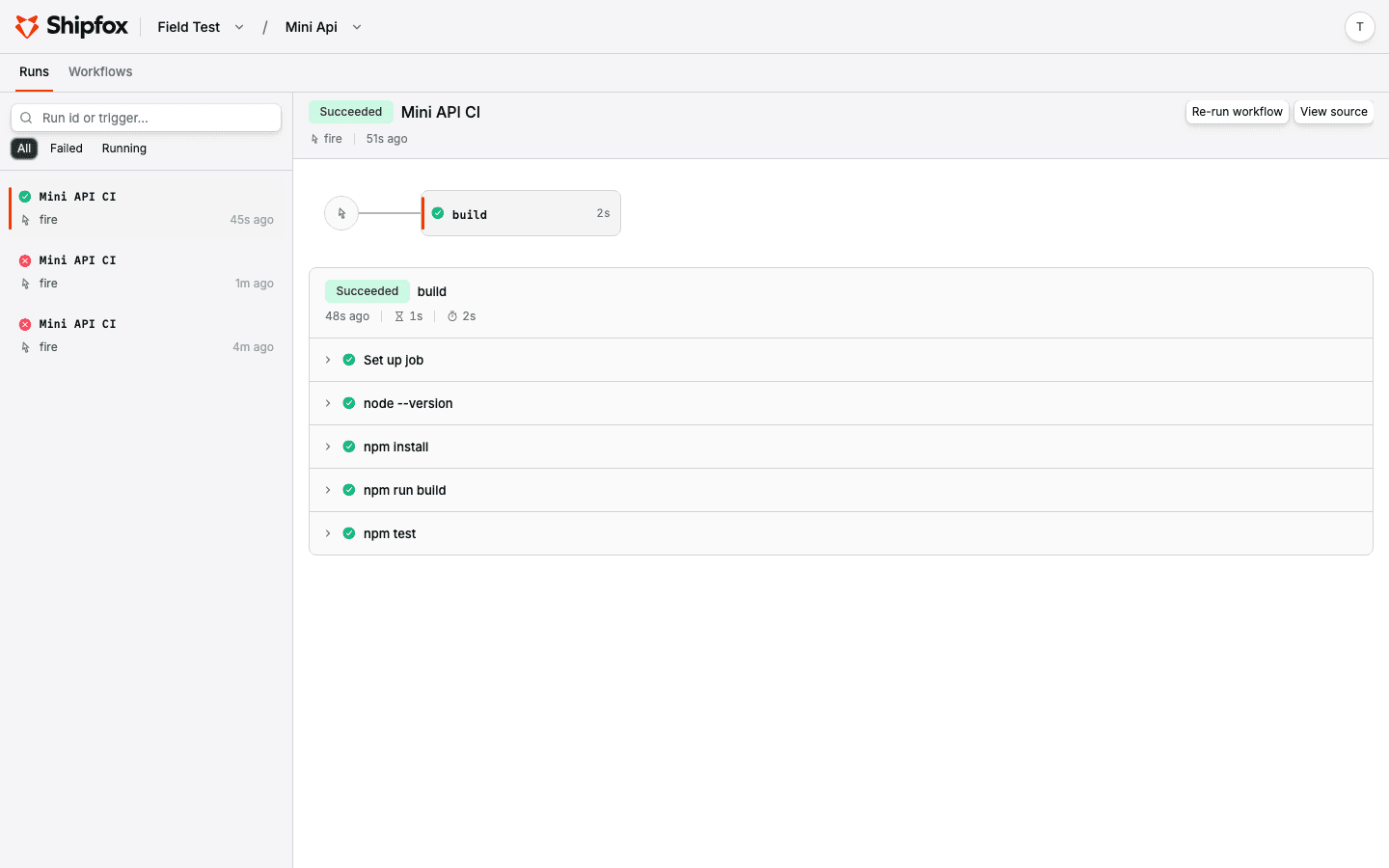
A run detail page: status, the job graph, and every step with its duration.
A run stuck in pending means no online runner matches the runner: value in your workflow. See Resolve pending jobs.
Verify the result
Open the agent step after it finishes.
- Confirm that the response has two sentences.
- Open the file named by the agent and check that it supports the summary.
- Confirm that the agent did not change any repository file.
The agent uses the checkout for the commit that started the run. Its messages, tool calls, token use, cost, and final response remain in the step log.
What you built
You added a complete workflow and started it with a manual trigger. One job ran a fixed command and an agent in the same checkout. The run now provides a visible record of both steps and their results.
Next steps
How Shipfox works
The mental model in one page: events, jobs, agents, and feedback loops.
Parallel CI and agent review
Run lint and tests together, then review the repository after both pass.
Gate & retry
Add an objective check and retry an agent with evidence.
Agent steps
Add and verify agent work in another workflow.
Checks on every push
Replace the manual start with a GitHub push trigger.